28. Dynamic Scenarios Manager
Tool that allows creating dynamic scenarios of network objects where we can modify any parameter of any object without modifying data in the inventory.
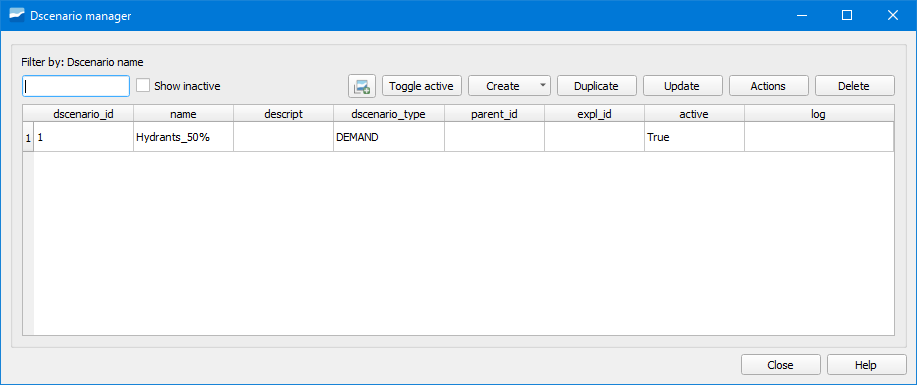
Figura 28.1 Window of the Dynamic Scenarios Manager tool for ws projects.
For projects of sanitation and urban drainage we will have a dropdown menu in the button to be able to select if we want to create a scenario of network objects (option Dscenario manager), a hydrology scenario (option Hydrology scenario manager) or a scenario in dry weather (option DWF scenario manager).
28.1. Dscenario manager (ws y ud)
Option to choose when we want to create a scenario of any object of the network.
To create it we will click on the dropdown of the Create button and select one of the following options:
Create valve dscenario from mincut (ws): allows creating a valve scenario for a cut polygon. It requires having created a cut polygon beforehand.
Create Demand Dscenario from CRM (ws): allows creating a demand scenario with data from a CRM.
Create Demand Dscenario from ToC (ws): allows creating a demand scenario with data from the ToC of our project.
Create empty Dscenario (ws and ud): allows creating an empty scenario.
Create Network Dscenario from ToC (ws): allows creating a network scenario with data from the ToC of our project.
Create Dscenario with values from ToC (ud): allows creating a network scenario with data from the ToC of our project.
Depending on the option chosen we will have to specify different options. To be able to have the scenario available is obligatory to activate the Active box. Once the scenario is created, we will see it listed in the scenario manager.
To add objects to the scenario and thus be able to modify their fields, we will have to select it with the selection tool that is inside the own scenario.
The data of the objects can be modified in three different ways: through the scenario manager, accessing the EPA tab of the object through the Info Giswater button and through the attributes table of the layer of the corresponding dscenario.
28.2. Hydrology scenario manager (ud)
Option to choose when we want to create a hydrology scenario.
To create it we will click on the dropdown of the Create button and select the Create empty Hydrology scenario option.
In the pop-up window we will have to indicate the name of the scenario, the infiltration method, the exploitation and if we want it active or not.
With the scenario created we can already build the hydrology to use.
28.3. DWF scenario manager (ud)
Option to choose when we want to create a scenario of flow in dry weather (DWF).
To create it we will click on the dropdown of the Create button and select the Create empty DWF scenario option.
In the pop-up window we will have to indicate the name of the scenario, the exploitation and if we want it active or not.
With the scenario created we can already add the flow data in dry weather.