8. Giswater toolbox
The toolbox contains a set of processes propios of Giswater with which we can, among other things, detect and correct errors in the network.
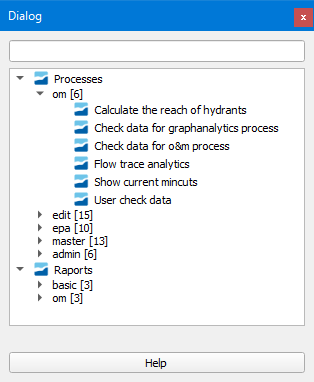
Figura 8.1 Giswater toolbox window.
When clicking on its button an window will open in which we will see that there are two large groups: Processes and Reports, each of which has some subgroups.
Within Processes we will find tools oriented to operations and maintenance (om), editing (edit), hydraulic simulation (epa), alternative management (master) and network administration (admin).
Within Reports we will find tools oriented to reports on basic aspects of the network (basic) and operations and maintenance (om).
To execute a process only double click on its name in the toolbox.
8.1. Process dialog
After double clicking on the process an dialog similar to the one shown in the following figure will open.
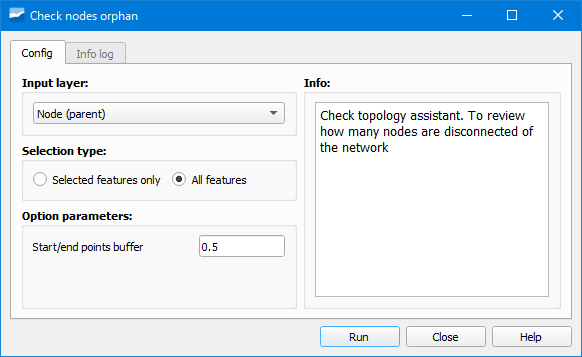
Figura 8.2 Process dialog for checking duplicated nodes in a ws schema.
The dialog shows two tabs on the left (Config and Info log), the process description on the right (Info) and a set of buttons at the bottom.
8.1.1. Tab Config
In this tab we must set the input values that the process needs to be executed as well as the configuration parameters that are necessary to specify.
The input values will depend on the process that is being executed so that the dialog will be different for each process.
8.1.2. Tab Info Log
Shows a summary of the process that has been carried out.
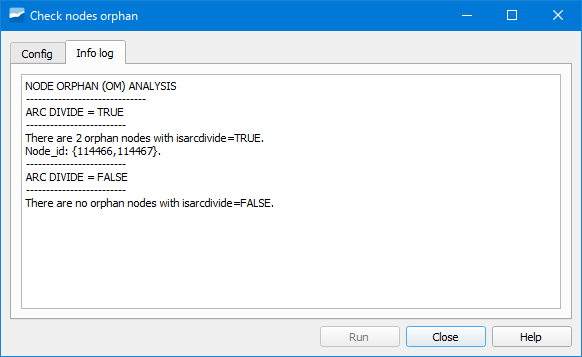
Figura 8.3 Example of a process summary.
8.2. Process results
The execution of certain processes involves the creation of some temporary layers with the results. These layers will be loaded in the ToC in a group called GW Temporal Layers and their geometry will depend on the geometry of the input layer.
To obtain information about the resulting layer we can open its attribute table.